Display Occupancy Percentage and Overridden Rate Details in the Daily Rates Screen
Stay is enhanced to display the occupancy percentage, and the overridden rate details in the Daily Rates screen. Users can also select multiple cells at a time and apply the following options:
-
Set Rule Set
-
Revert Rates
-
Set Restrictions
-
Revert Restrictions
To support this enhancement, a new flag, Display Occupancy and Overridden Rates, is added to the Daily Rate Settings screen. This flag is disabled by default. When enabled, the occupancy % and the overridden rate details are displayed on the Daily Rates screen.
Daily Rates Screen
The following details are displayed in the Daily Rates screen:
-
The Occupancy % is calculated for each room type for the particular date and displayed in the cell. The Occupancy % is calculated for the room type in all the rate plans as follows: Occupancy % = Occupied Rooms/Rooms Available.
-
When a user overrides the rate for a date, the following details are displayed:
-
Overridden Rate: The rate that is being overridden is struck out and displayed below the Current Rate.
-
Current Rate: The rate that is being applied is displayed in the center of the cell in bold.
-
Increased or Decreased: Displays the amount that is increased or decreased after the override. For example, when a user overrides a rate from $200 to $250, the overridden rate is displayed as $200, the current rate is displayed as $250, and the increase or decrease in amount is displayed as $50.
-
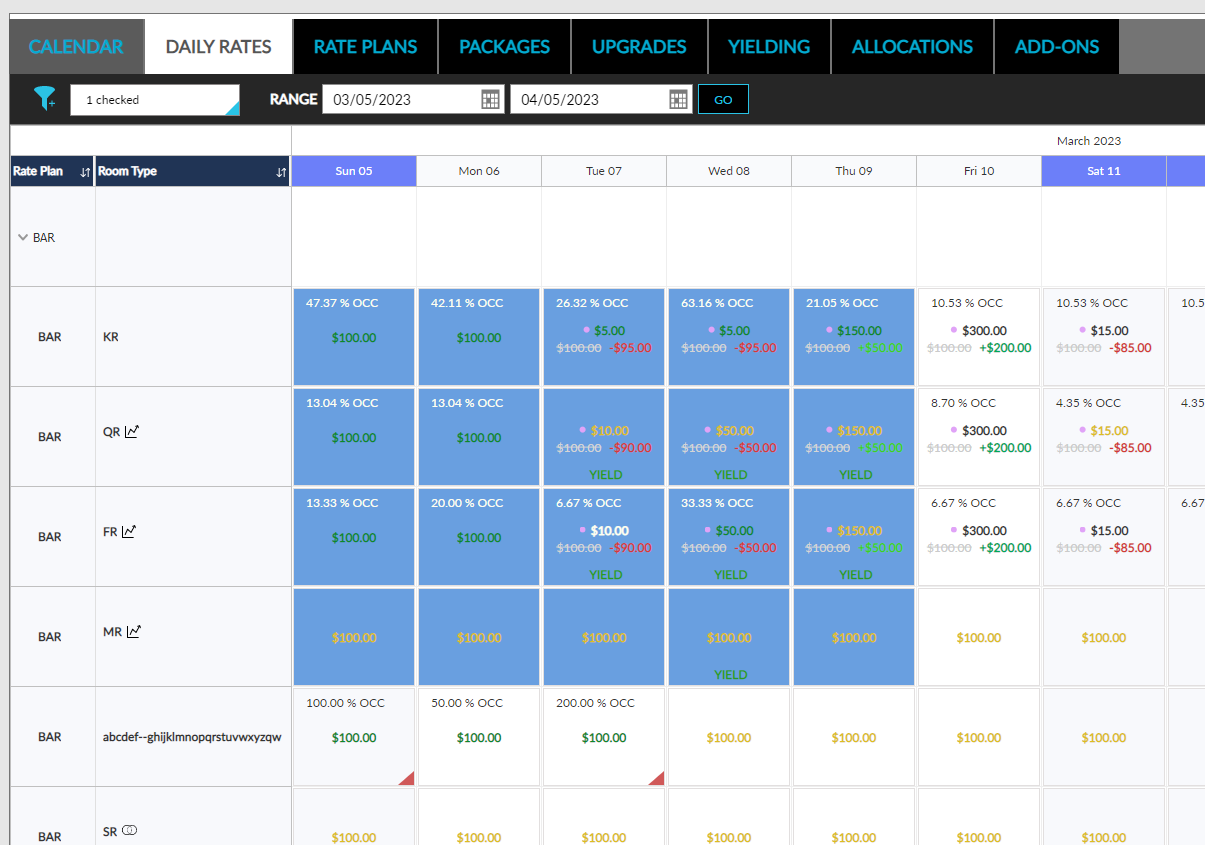
-
Users can select multiple cells in the Daily Rates screen by clicking on a cell, dragging, and selecting the other required cells. When multiple dates are selected, the following fields are updated in the Set Rates screen:
-
Start
-
End
-
No of Days
-
Days
-
Room Types
-
Rate Plans
-